




SYSTEMTRADE.COM For Vendor

User Manual

▼ Please select an item ▼

How to Register as a Vendor

Register as Vendor

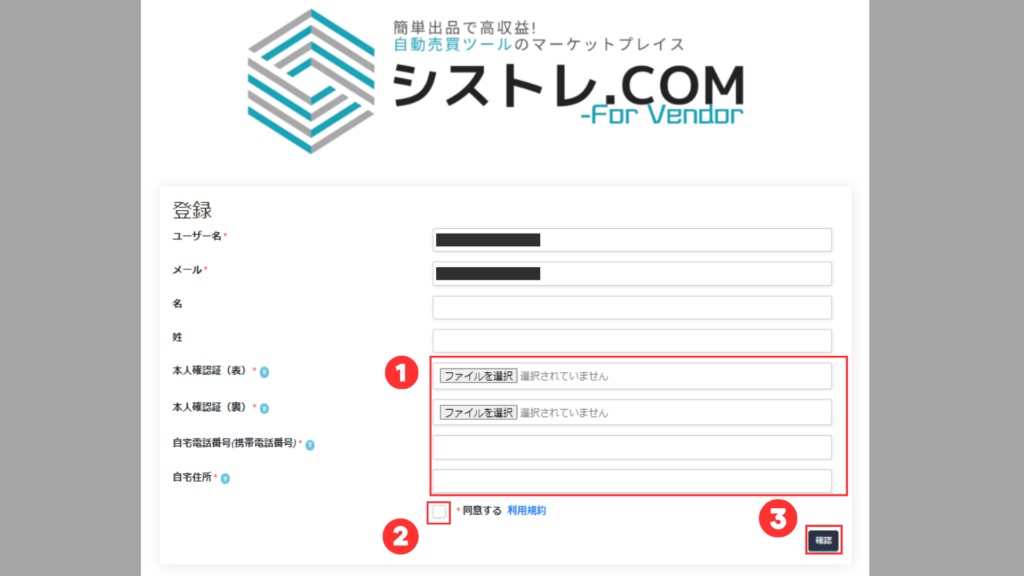
 *If you have not registered on SYSTEMTRADE.COM yet, please register first. After registration, go to “My Account > Vendor Registration”.

 1. Fill in the form, 2. Agree to the Terms of Service, 3. Click Confirm

Vendor registration | SYSTEMTRADE.COM

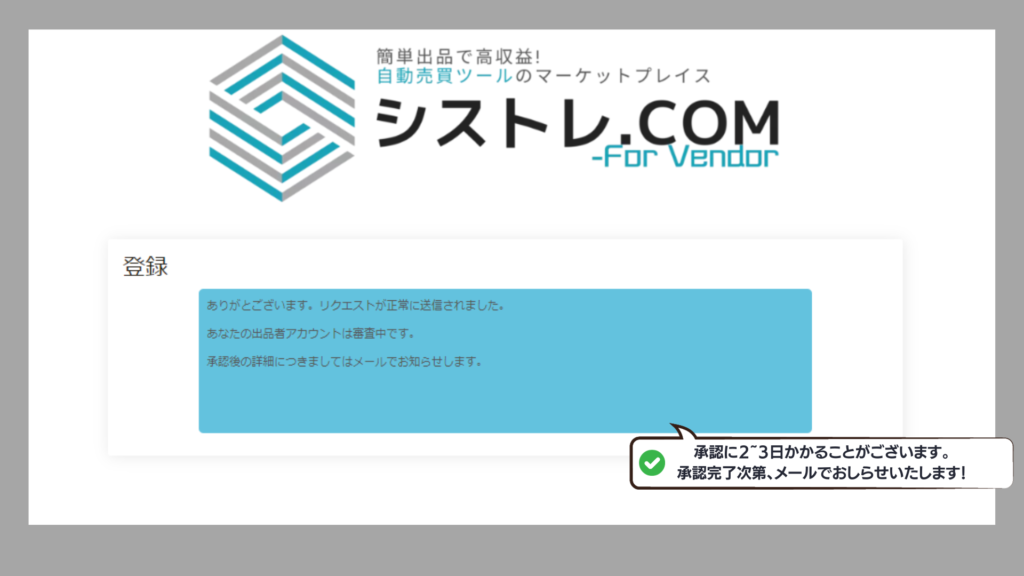
Wait for Review

After vendor registration, review results will be sent by email within 1-3 days.

Vendor verification | SYSTEMTRADE.COM

SYSTEMTRADE.COM ForVendor
Rule Guide

 We are pleased to introduce our “EA Marketplace” — designed to benefit both our company and EA developers, while providing better system trading tools to EA users.

SYSTEMTRADE.COM logo | SYSTEMTRADE.COM

How It Works


How Systre Points Work
Earn Systre Points from paid sales and free version usage rewards
Free
Rewards based on
trading volume
Consolidated monthly → Managed and withdrawable as Systre Points
Cumulative points increase Vendor Rank → Higher free version reward rate
*Paid version rewards are fixed regardless of Vendor Rank

Paid Version Service Flow

Customer Purchase of Paid Version

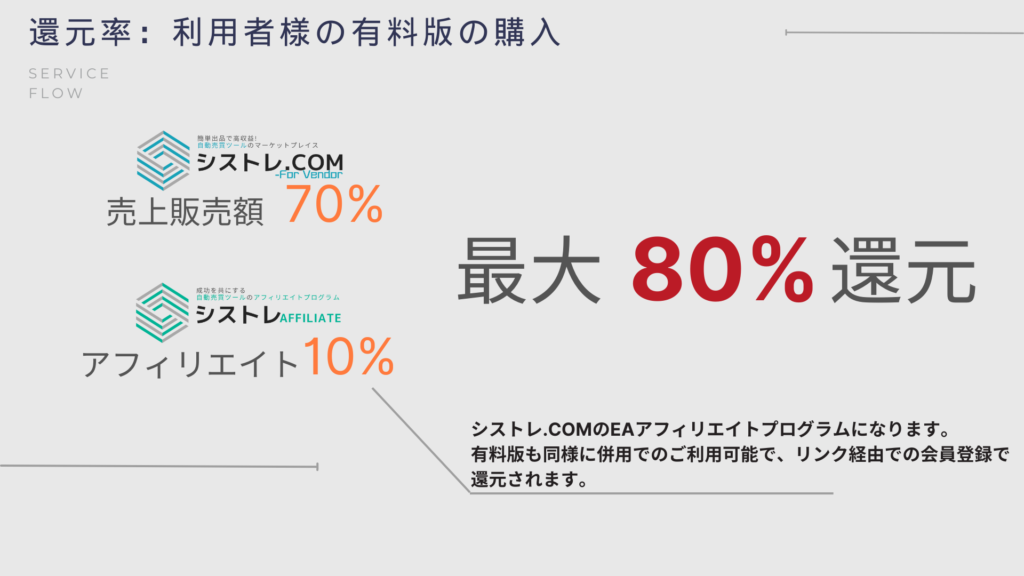
When your listed EA is purchased, the reward amount is the sales price minus a 30% commission fee.

Guide image for EA vendors | SYSTEMTRADE.COM

Reward Rate

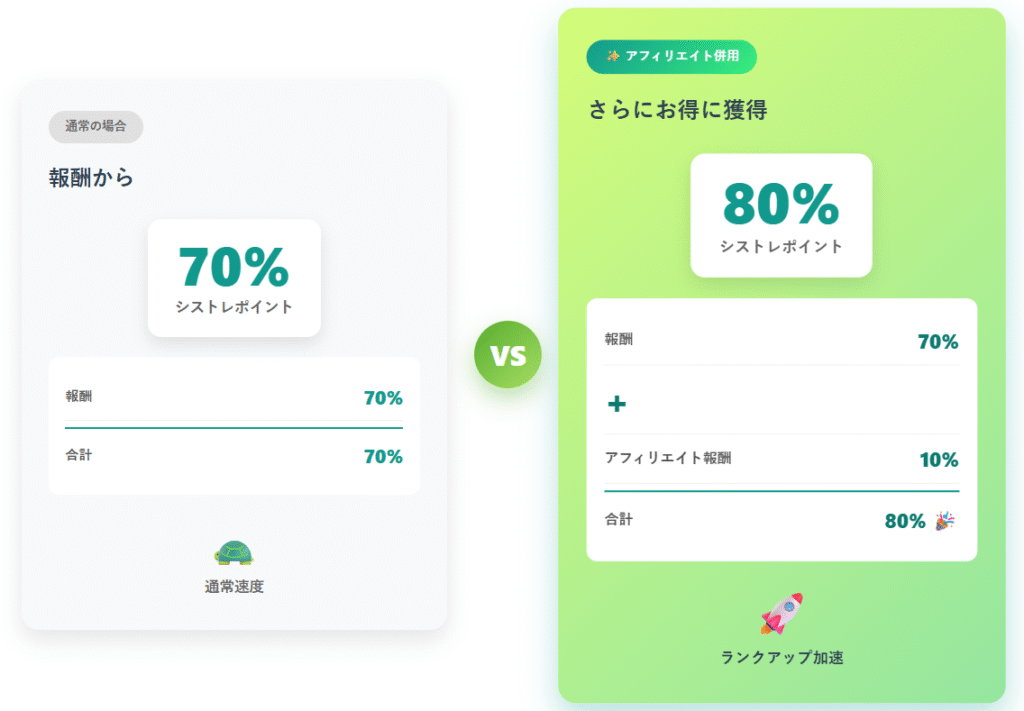
A flat maximum reward rate of 70% applies, which increases to 80% when combined with Systre.AFFILIATE.


Guide image for EA vendors | SYSTEMTRADE.COM

All earned sales revenue is consolidated at the beginning of each month and managed as “Systre Points”.

Free Version Service Flow

Customer Usage of Free Version

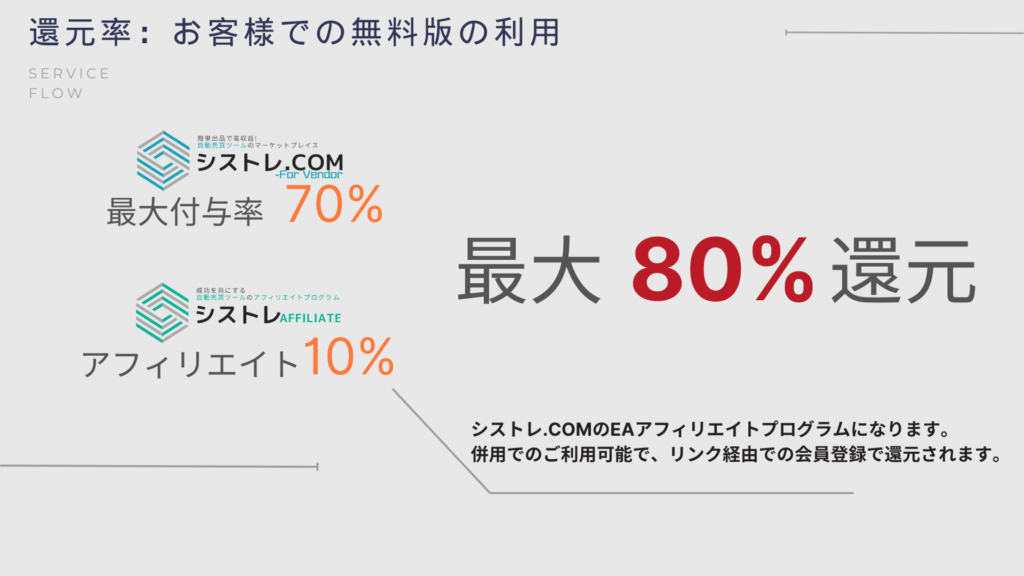
When your listed EA is used for free, Systre.COM pays a reward to the vendor.

Guide image for EA vendors | SYSTEMTRADE.COM

Reward Rate

The reward rate varies based on your Vendor Rank. The maximum rate is 70%, increasing to 80% when combined with Systre.AFFILIATE.

Guide image for EA vendors | SYSTEMTRADE.COM

Systre Points

Systre Points

Sales revenue and free version trading rewards are consolidated at the beginning of each month and managed entirely as “Systre Points”.

When withdrawing, you can withdraw all points at once.

Vendor Rank

Vendor Rank Changes

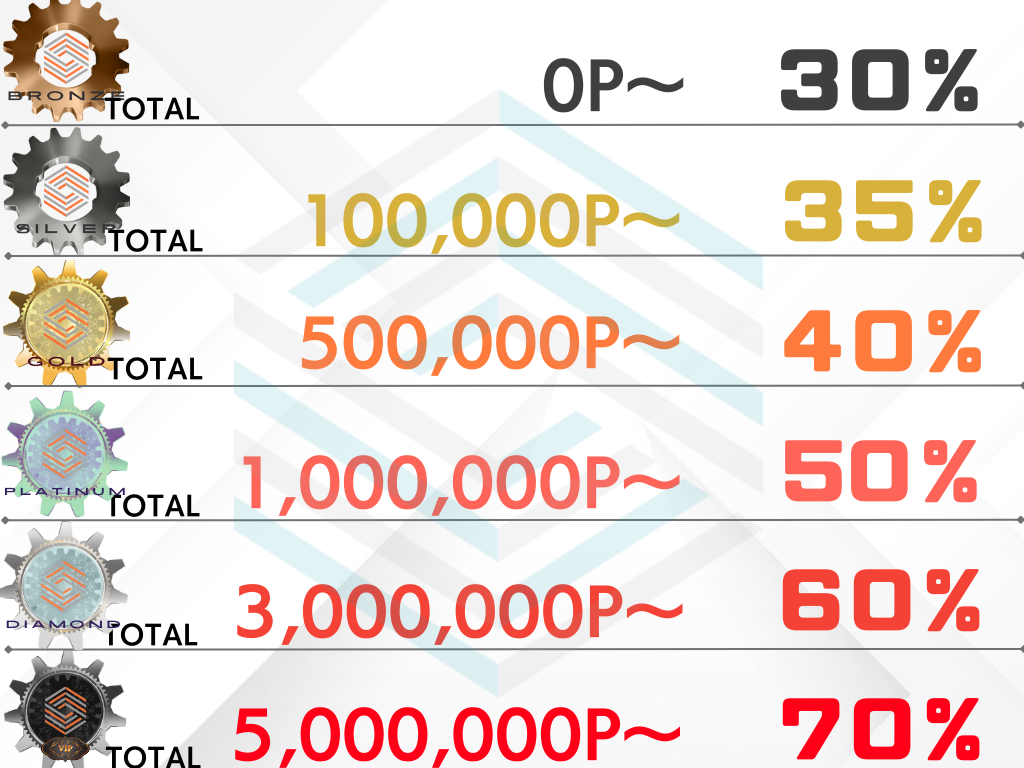
Earned points are recorded as “Cumulative Systre Points”, and your Vendor Rank increases based on the total.

Guide image for EA vendors | SYSTEMTRADE.COM

Point Reward Rate by Rank

 As your rank rises, the free version reward rate changes, allowing you to earn more rewards.

 *Paid version sales rewards are fixed regardless of Vendor Rank.

Guide image for EA vendors | SYSTEMTRADE.COM

Affiliate Integration

Why Developers Should Use Affiliate Integration

By combining SYSTEMTRADE.COM For Vendor with Systre.AFFILIATE, you can accelerate your Vendor Rank growth and maximize long-term revenue.

POINT 1: Affiliate Rewards Also Become Systre Points


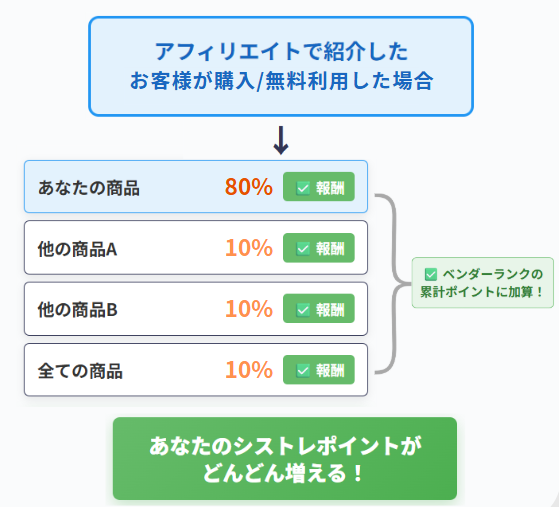
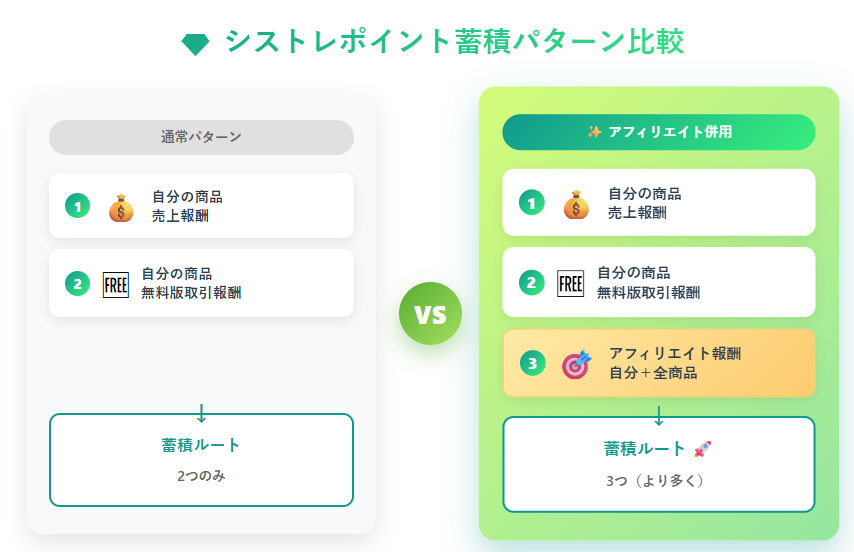
Affiliate rewards (10%) are also added to your cumulative Systre Points for Vendor Rank. This allows you to rank up faster than usual.

Screenshot of Vendor_rule | SYSTEMTRADE.COM

POINT 2: All Products Except Your Own Are Eligible for Rewards

All products used or purchased on SYSTEMTRADE.COM by customers you referred through affiliate are eligible for rewards.

In other words, you don’t need to promote specific products — by introducing SYSTEMTRADE.COM as a whole, all subsequent customer activity becomes your revenue.

Screenshot of Vendor_rule | SYSTEMTRADE.COM

How the Vendor Rank System Accelerates Growth

 Vendor Rank is determined by cumulative Systre Points.

 By combining affiliate, the rate of cumulative point growth doubles, and your Vendor Rank rises faster. As your rank increases, the free version reward rate also goes up (up to 70%), significantly boosting long-term revenue.

Screenshot of Vendor_rule | SYSTEMTRADE.COM

Listing Flow

Details Here

Open Store Manager

Open Store Manager

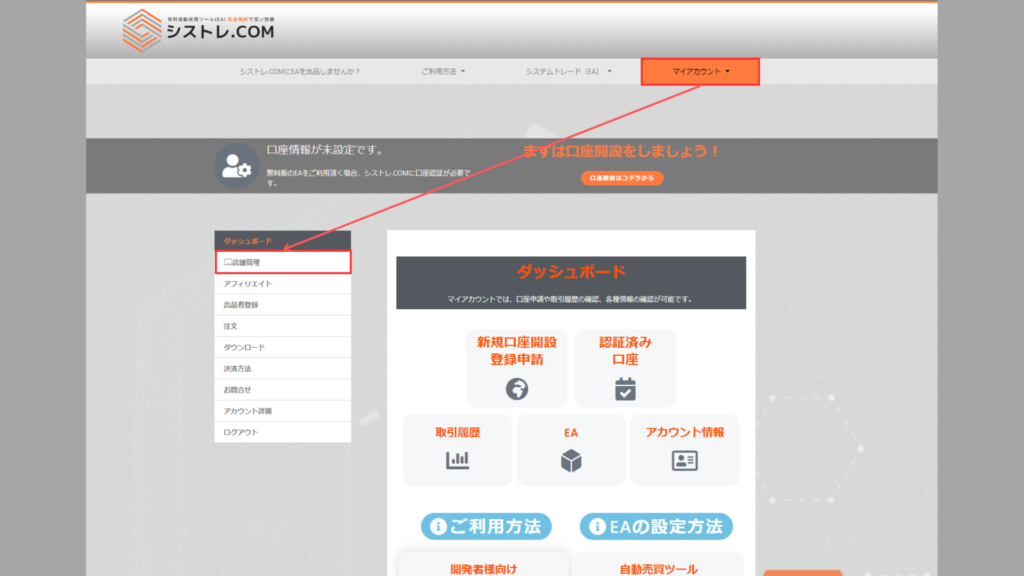
*After vendor registration on SYSTEMTRADE.COM, the “ForVendor” tab will be displayed.

My Account > ForVendor

Open the store dashboard | SYSTEMTRADE.COM

Store Manager

Vendor_management template image | SYSTEMTRADE.COM

My Store

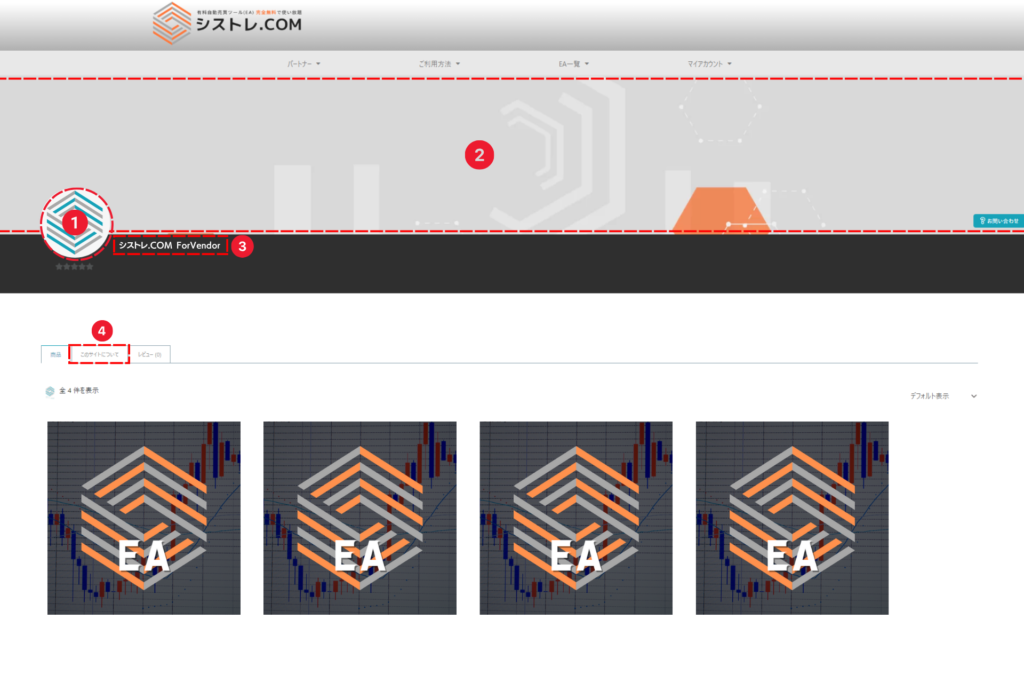
Displays your store page.


*If you have not listed your first product yet, your store will remain private.

SYSTEMTRADE.COM image | SYSTEMTRADE.COM

 Home

 Displays statistics for sales, orders, products, shipping, etc. Also includes links to manage products and orders.

1. Shows this month’s sales and performance. 2. Store Analytics 3. Displays sales ratio per product. 4. Shows notifications for sales or product approval completion. 5. Displays when product inquiries are received. 6. Shows product sales status. 7. Displays the latest topics when available.

 New Listing Application

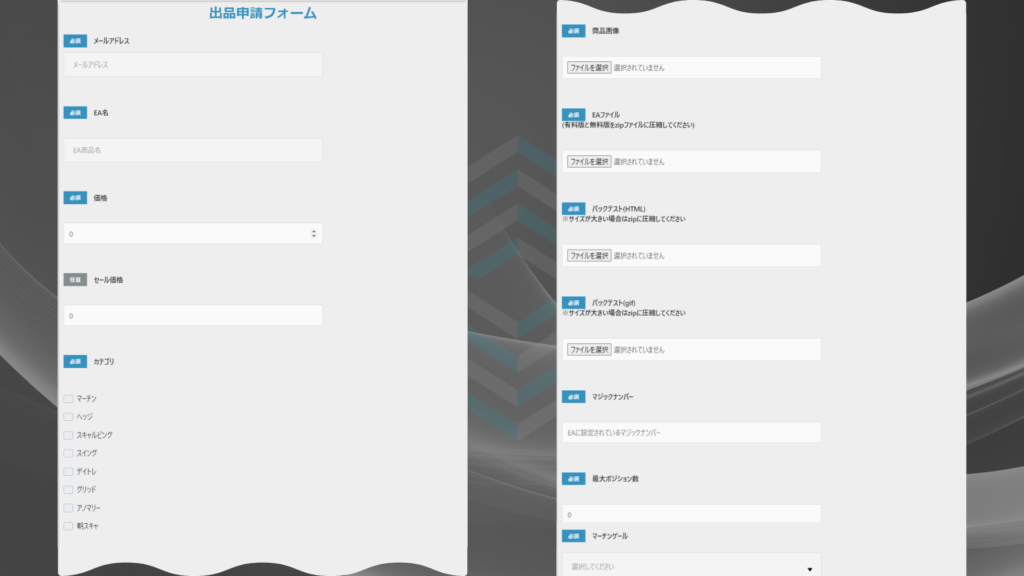
Submit a new EA listing application. Please list your EA here after preparing it for sale.

Vendor_management template image | SYSTEMTRADE.COM

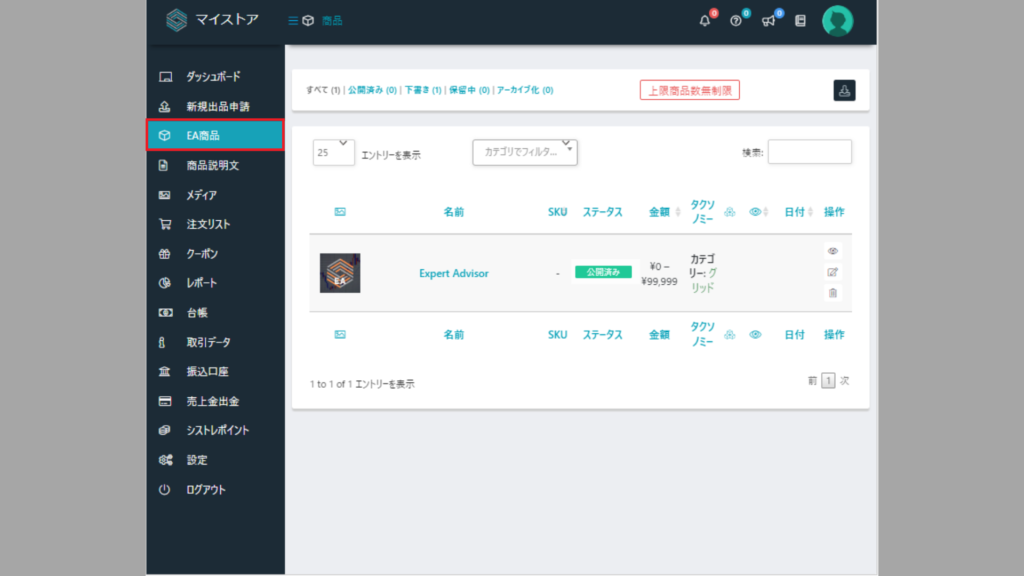
Product Settings

 You can manage your listed products.
From this section, you can submit change requests for the following information of your published products.

 – Product Price
– Product Tagline
– Product Description
– Product Update

Screenshot of EA product settings | SYSTEMTRADE.COM
EA product settings template image | SYSTEMTRADE.COM

Media

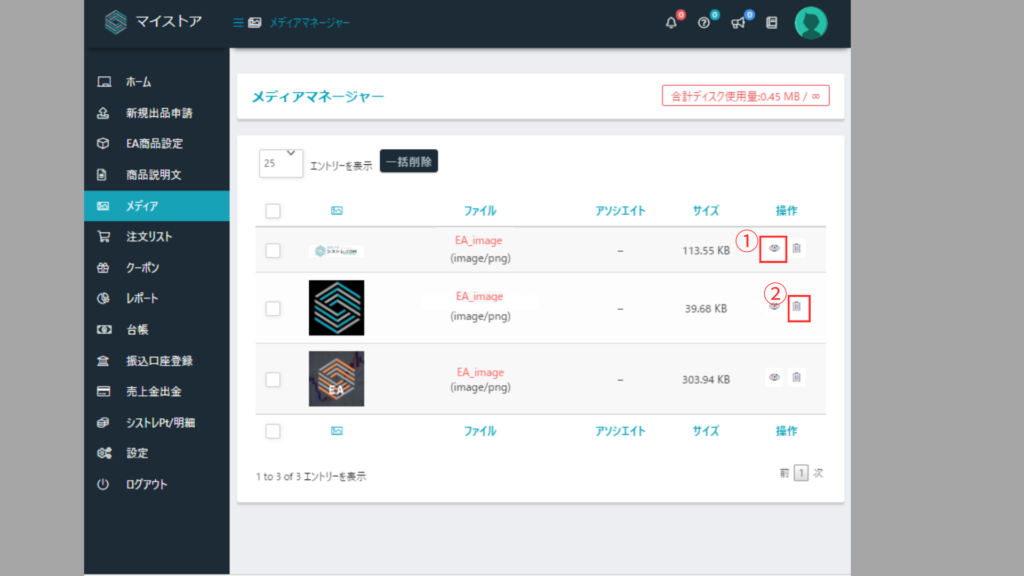
You can upload media files such as images used for EA listings and article creation.
You can also view and edit uploaded media files.

1. View Media
2. Delete Media

SYSTEMTRADE.COM image | SYSTEMTRADE.COM

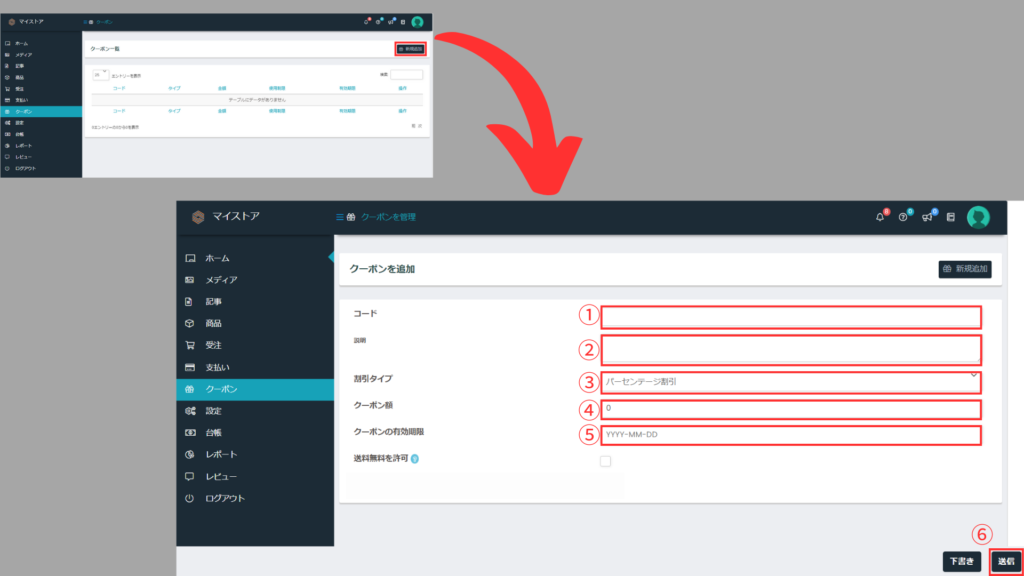
 Coupon

You can issue coupons that apply to all products in your store.
To apply coupons to individual products, please contact us as product restrictions are handled by the admin.

(Inquiry Example)
I would like to apply coupons per product.

Coupon Code: coupon001
Applicable Products: SystreEA, VendorEA
Usage Limit: (if needed)
Exclude Sale Items: Yes/No

Coupon | SYSTEMTRADE.COM

 Systre Points Statement / Withdrawal

Systre Points Statement / Withdrawal

 You can check the status of various reward earnings.

Guide image for EA vendors | SYSTEMTRADE.COM

Settings

You can configure various store settings.
Items set during vendor registration can be reconfigured here.


 To save your settings, click “Save” at the bottom right of the screen

Guide image for EA vendors - [For Vendor] Selling EAs on SYSTEMTRADE.COM | SYSTEMTRADE.COM

Logout

You can log out from SYSTEMTRADE.COM.

Vendor Rank

Rank up is based on cumulative Systre Points.
Vendor Rank corresponds to the free version reward rate.
When withdrawing Systre Points, the amount is deducted from your held points.

Guide image for EA vendors | SYSTEMTRADE.COM
SYSTEMTRADE.COM logo | SYSTEMTRADE.COM

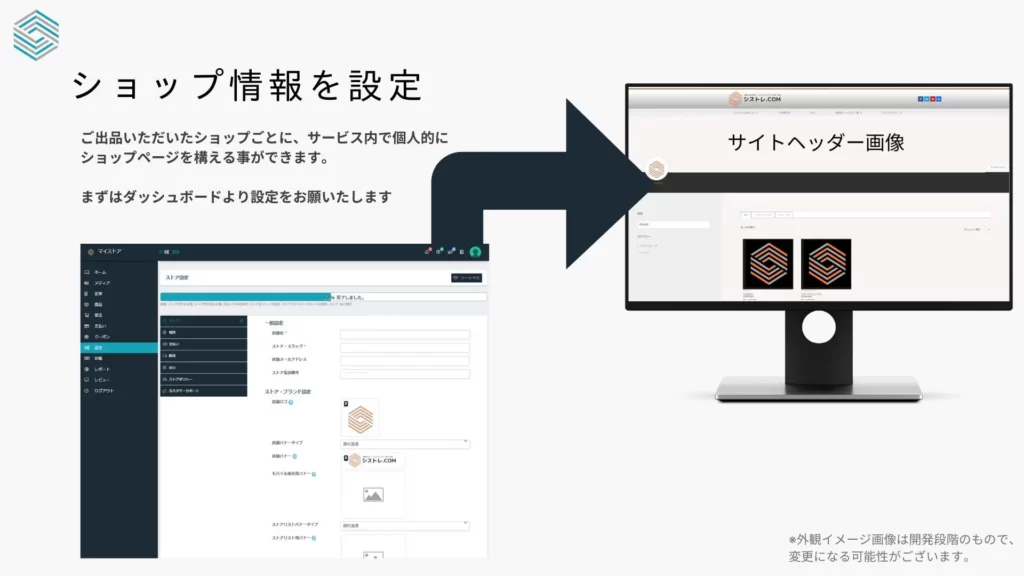
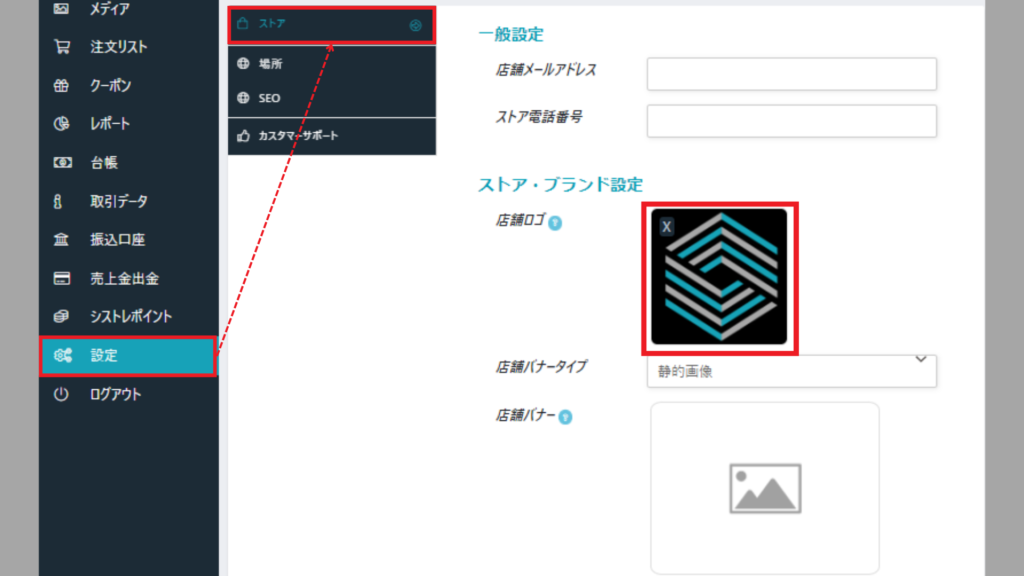
Store Image

Store Image Settings

 Go to Dashboard > Settings,
upload a store image, and click Save at the bottom right

SYSTEMTRADE.COM image | SYSTEMTRADE.COM

Store Banner

Store Banner Image Settings

Go to Dashboard > Settings,
upload a store banner image, and click Save at the bottom right

SYSTEMTRADE.COM image | SYSTEMTRADE.COM

Store Name

Change Store Name

You can also contact us here. ▶

SYSTEMTRADE.COM image | SYSTEMTRADE.COM

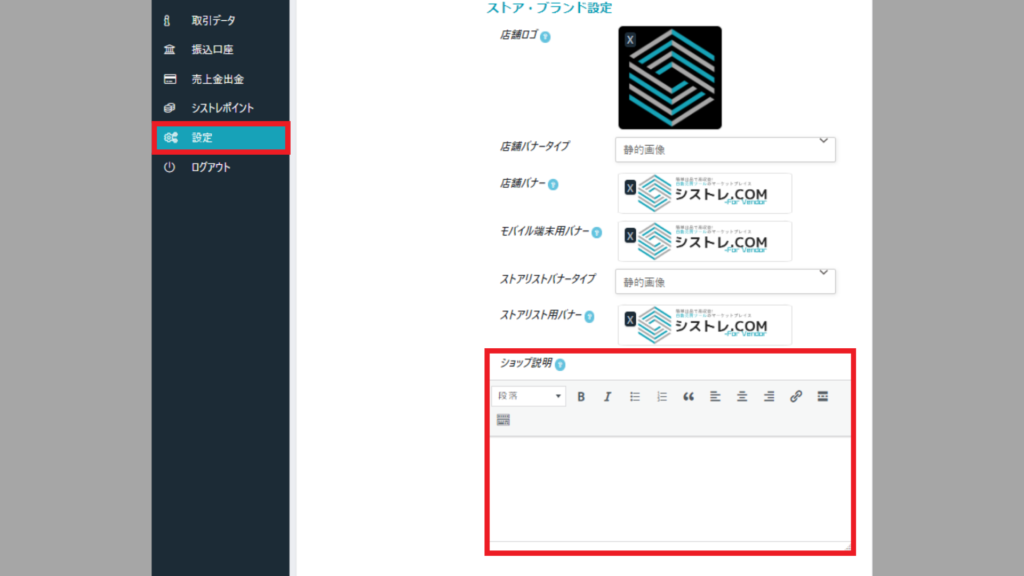
Store Information

Store Information

 You can enter your store information here.

SYSTEMTRADE.COM image | SYSTEMTRADE.COM

Save

Remember to click “Submit for Review” at the bottom right of the screen.

SYSTEMTRADE.COM image | SYSTEMTRADE.COM

EA Product Setup Guide

EA Product Settings

From the menu in the ForVendor Dashboard,
click “Product Settings”.

SYSTEMTRADE.COM image | SYSTEMTRADE.COM

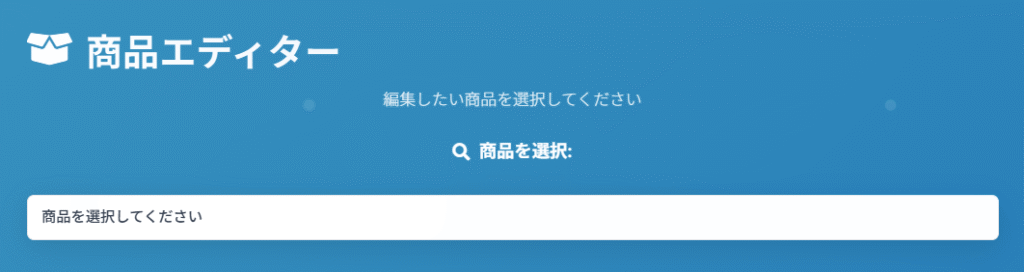
Select a Product to Edit

Products will be displayed after the listing application is approved.
Please select a product to edit.

Screenshot of EA product settings | SYSTEMTRADE.COM

Navigation Tab

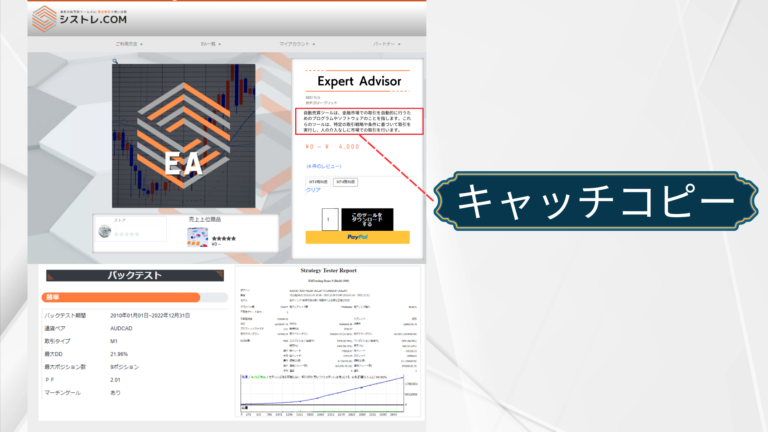
Product Description: Currently selected tab (product description editing mode)

 Paid Version Pricing: Price settings screen
Product Info Edit Form: Product information editing screen

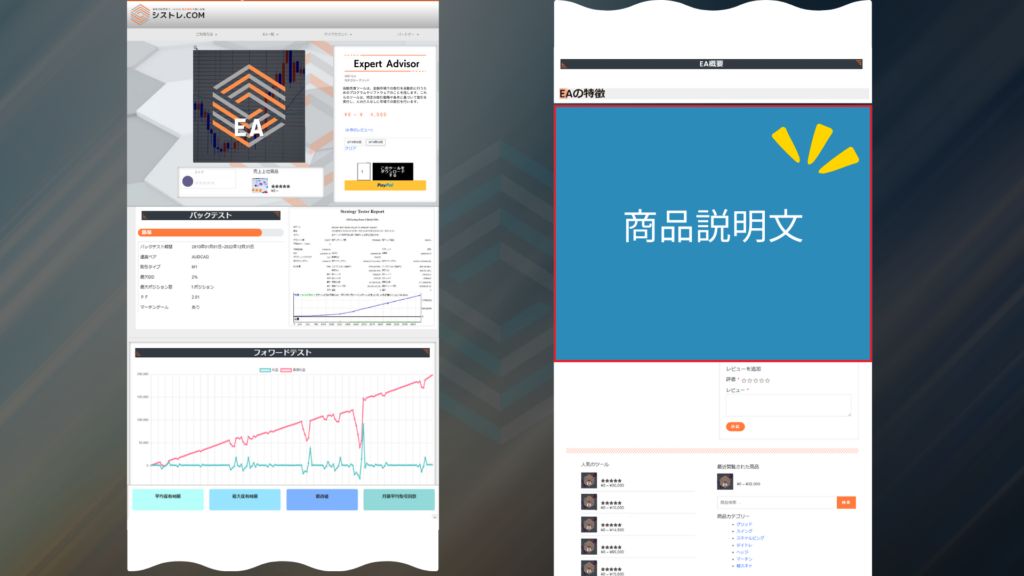
Product Description

Vendor product description template image | SYSTEMTRADE.COM

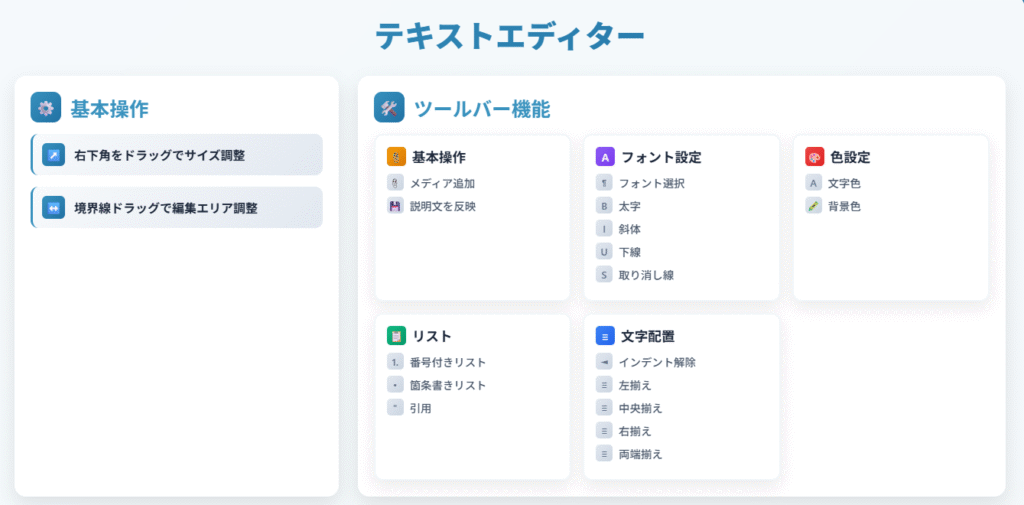
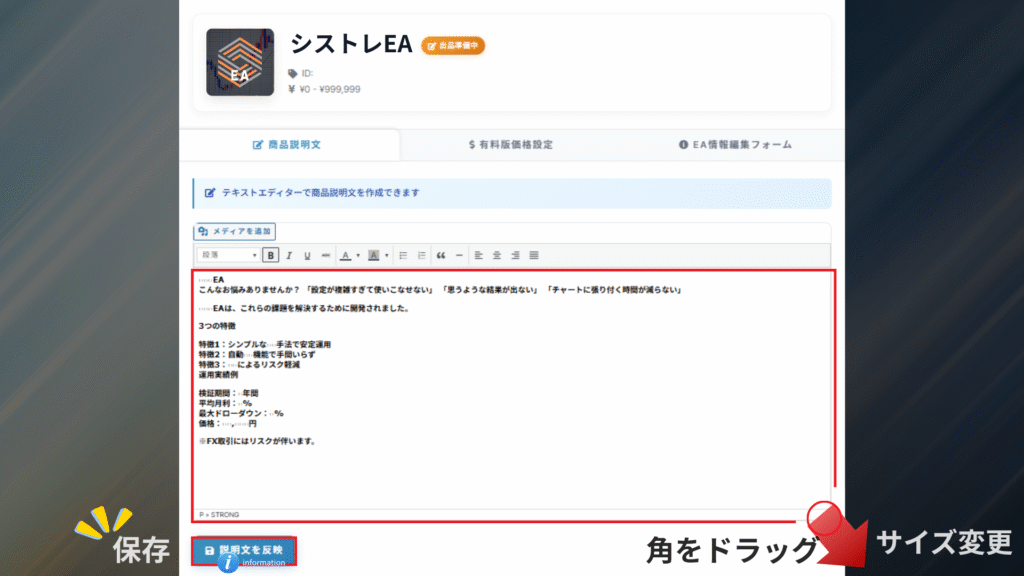
Create Product Description

Text Input: Click the white area in the editor to start typing
Formatting: Select text, then apply toolbar functions
Media Insert: Use the “Add Media” button to insert images or videos
Save: Click the “Apply Description” button to save the content

EA product settings template image | SYSTEMTRADE.COM
SYSTEMTRADE.COM screenshot | SYSTEMTRADE.COM

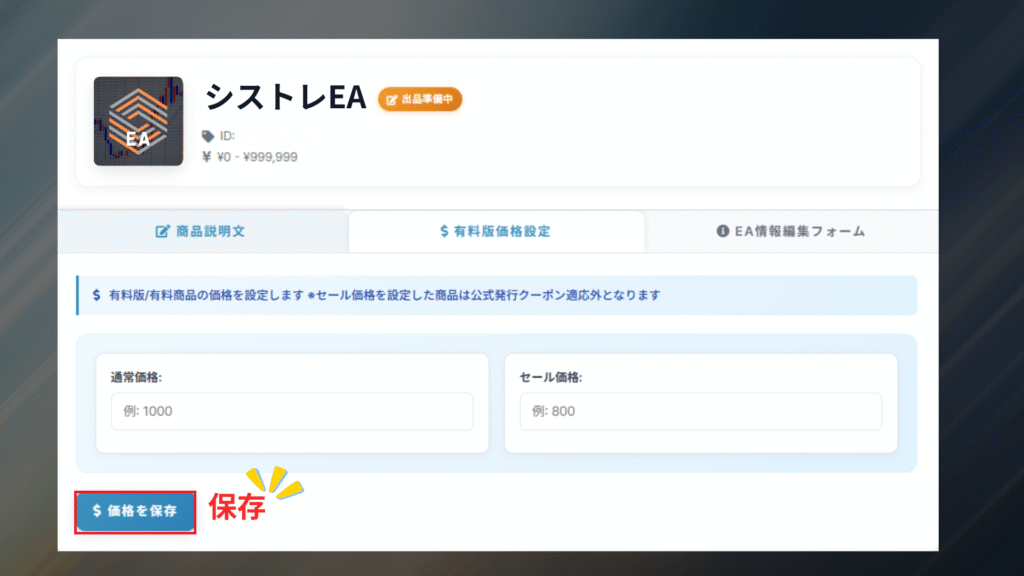
Product Price

SYSTEMTRADE.COM image | SYSTEMTRADE.COM

Adjust Product Price

 Please set the revised price for the paid version.
If you want to set a sale price and sale period, please fill in the fields.

EA product settings template image | SYSTEMTRADE.COM

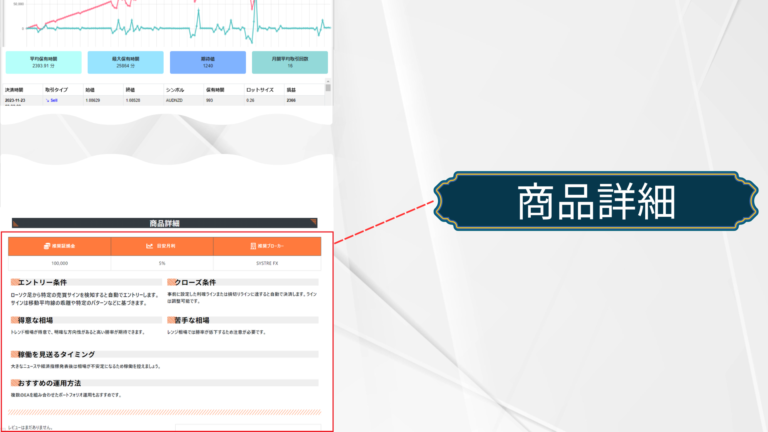
Product Details

SYSTEMTRADE.COM image | SYSTEMTRADE.COM
Vendor product settings template image | SYSTEMTRADE.COM

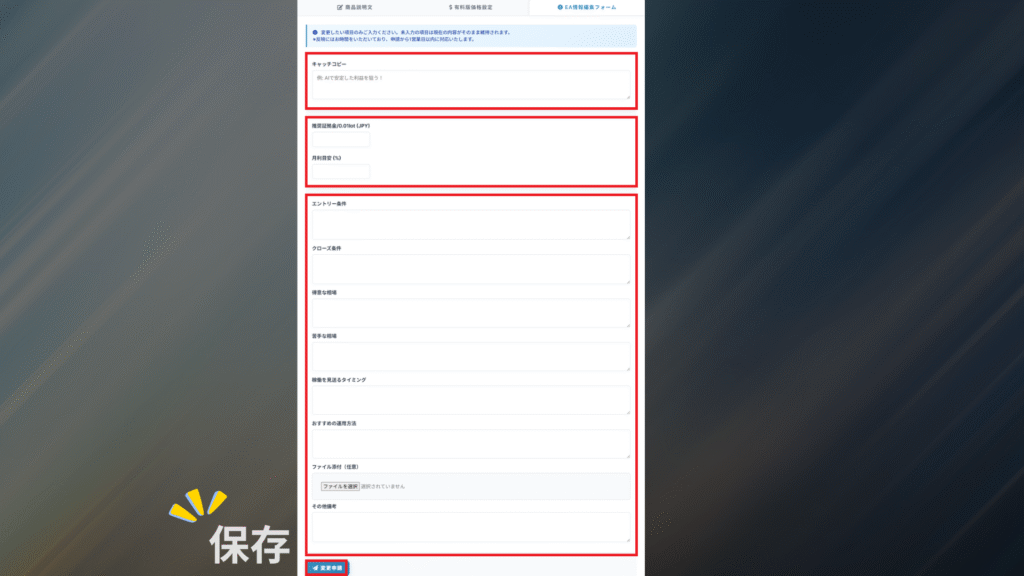
Edit Product Details

You can edit each product detail at the bottom of the product page
• Product catchphrase
• Recommended margin
• Estimated monthly return
• Entry conditions
• Close conditions
• Favorable market
• Unfavorable market
• When to pause the EA
• Recommended operation method

EA product settings template image | SYSTEMTRADE.COM

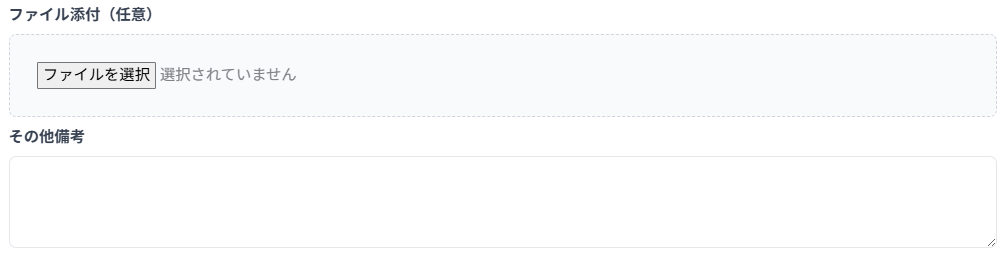
Replace EA Product

You can submit a request to replace your EA product.
Please create the paid/free version, compress it in ZIP format, and upload it.

Please also describe the details of the changes.

For any other requests regarding product information changes, please describe them in the remarks field.
SYSTEMTRADE.COM screenshot | SYSTEMTRADE.COM

Others

For other product information edits, please contact the administration.

    We will reply to the email address you entered within a few business days.

    Forward Test

    Item
    Real
    Real Account Measurement
    Demo
    Demo Account Measurement
    Forward Measurement
    Vendor (Self)
    Admin Team
    Account Type
    Real Account
    Demo Account
    EA Submission Format
    EX4/EX5/MQ4/MQ5
    All formats supported
    MQ4/MQ5 only
    Source code required
    Measurement Tool
    Dedicated EA provided
    Data transmission tool
    Not required
    Measured directly by admin
    Trade Lot SizeFixed at 0.01 lotFixed at 0.01 lot
    Data Reflection
    • Real-time reflection
    • Real-time reflection
    Main Restrictions
    • Demo account not available
    • Fixed 0.01 lot operation
    • MQ4/MQ5 format required
    • Fixed 0.01 lot operation
    Important Notes
    • Data transmission tool without trading logic
    • Data measured based on magic number
    • EAs with excessive risk may be rejected for listing
    • May be asked to switch to vendor measurement based on performance

    Admin Measurement (Demo Account)

    active account type_DEMO
    ⚠️ Important Notice
    If you wish to have forward measurement on a demo account, you must submit your EA in MQ4/MQ5 format.
    Please note that if you submit in EX4/EX5 format, measurement will be conducted on a real account.
    • • Please submit your EA in MQ4/MQ5 format.
      • EAs with excessive risk may be rejected for listing.
      • You may be asked to switch to vendor measurement based on performance.
      • If the change cannot be made, the product listing may be terminated.

    Vendor Measurement (Real Account)

    active account type_REAL

     After submitting your listing application, we will send you a dedicated EA for forward measurement.

    • A data transmission tool without trading logic will be measured on the developer’s real account.
      Please apply it to the MT4/5 chart where the EA is running. Data is measured based on the magic number.

    Forward Measurement EA Setup Guide
    Please add the following URL to "Allow WebRequest for listed URL"
    URL to add
    • • Cannot be used with a demo account
      • Past trading data will also be reflected automatically
      • Forward testing requires fixed 0.01 lot operation.
    Scroll to Top