
Expert Advisors (EAs) available on SYSTEMTRADE.COM are compatible with MT4 (MetaTrader 4).
MT4 is software that runs on your computer and serves as a trading platform provided by FX brokers.
This platform allows you to trade in the FX markets.
To run EAs from SYSTEMTRADE.COM, configure the following 3 settings in MT4. This is a one-time setup.
- Allow WebRequest
Go to Tools → Options → Expert Advisors tab, check “Allow WebRequest for listed URL” and add the following (copy & paste):https://sys-tre.com/ - Allow automated trading
Check “Allow automated trading” in the same tab - Allow DLL imports
Check “Allow DLL imports (only for trusted applications)”
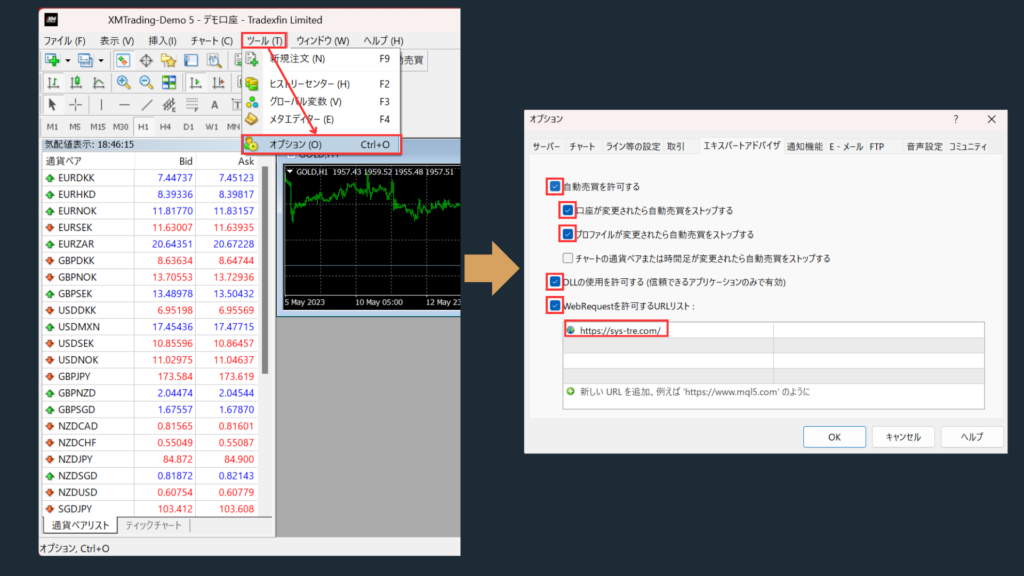
→ Click OK to save. EAs will not run without these settings.
What is MT4?
To run an EA properly, you need to apply the EA to a chart with the specified currency pair and timeframe, then start automated trading.
Chart Display
MT4 graphically displays forex rates and prices of other financial instruments. By viewing these charts, you can understand price movements and trend patterns.
Trade Orders
As a trading platform, it naturally allows you to place trade orders. For example, you can place “buy orders” to purchase or “sell orders” to sell specific currency pairs (e.g., EUR/USD). To place orders, you need to specify the trade size (order volume) and entry point (price).
Technical Analysis
MT4 provides various technical indicators and graphical tools that you can use to analyze price movements and trends. For instance, you can utilize indicators such as moving averages and the Relative Strength Index (RSI).
Automated Trading
MT4 includes functionality for creating and executing EAs (Expert Advisors). This allows you to automatically execute trades based on predefined rules. This is the feature you’ll use for EAs downloaded from our site.
Backtesting
MT4 also allows you to test trading strategies using historical data. This enables you to evaluate trading performance based on past data and verify the accuracy of future predictions.
Downloading MT4
-1.webp)







How to Set Up EAs in MT4
Launch MT4 and click “File” →”Open Data Folder”. In the displayed folder, navigate to MQL4 → Experts and save your EA in this folder.
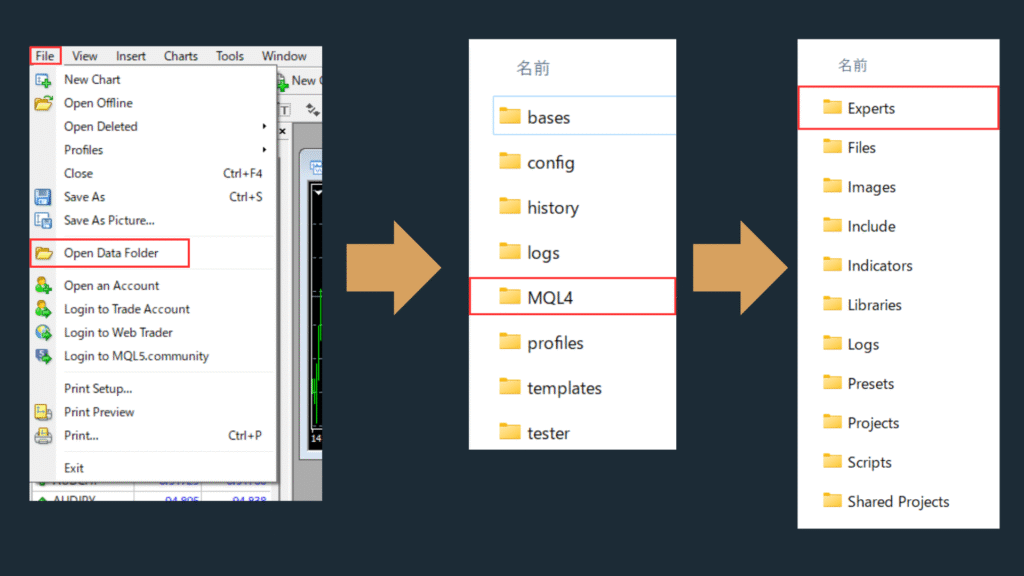
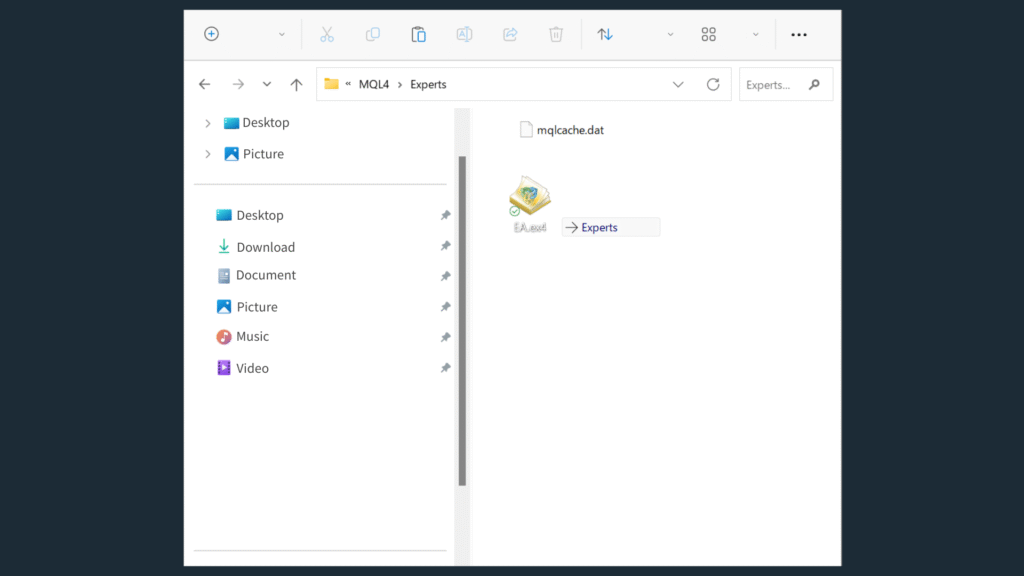
Move the saved EA file to the Experts folder mentioned above.
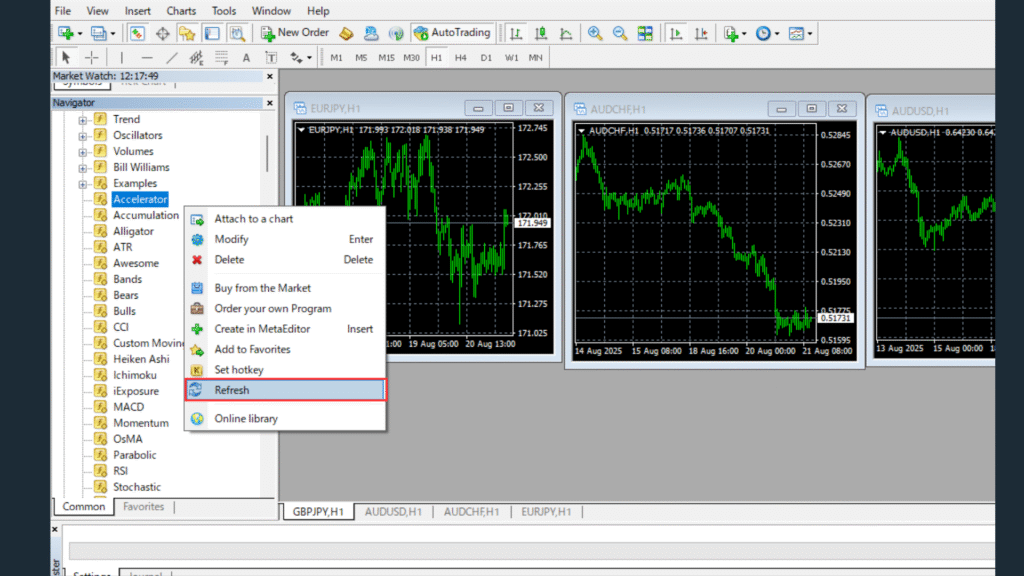
Right-click in the Navigator and select “Refresh” to update the EAs. If the update doesn’t reflect, try restarting MT4.
- From the top toolbar in MT4, select”Tools” →”Options”
- From the Options screen tabs, select”Expert Advisors”
- Check”Allow automated trading”
- Check”Allow DLL imports (for trusted applications only)”
- Click the”OK” button
Add https://sys-tre.com/ to the WebRequest allowed URL list.
↓Copy and paste the following into the URL list!↓
- https://sys-tre.com/
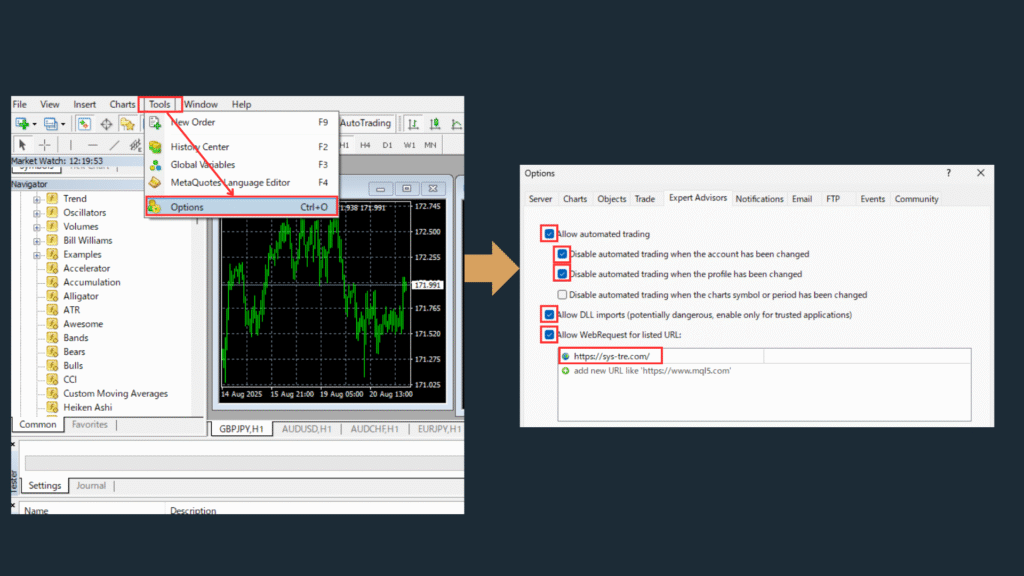
Once configuration is complete, automated trading will be enabled.
To run an EA, you need to set it on a chart and select the operating currency pair and timeframe. From the MT4 toolbar, select “File” →”New Chart”, choose your desired currency pair, then set your preferred timeframe (M1, M5, etc.).
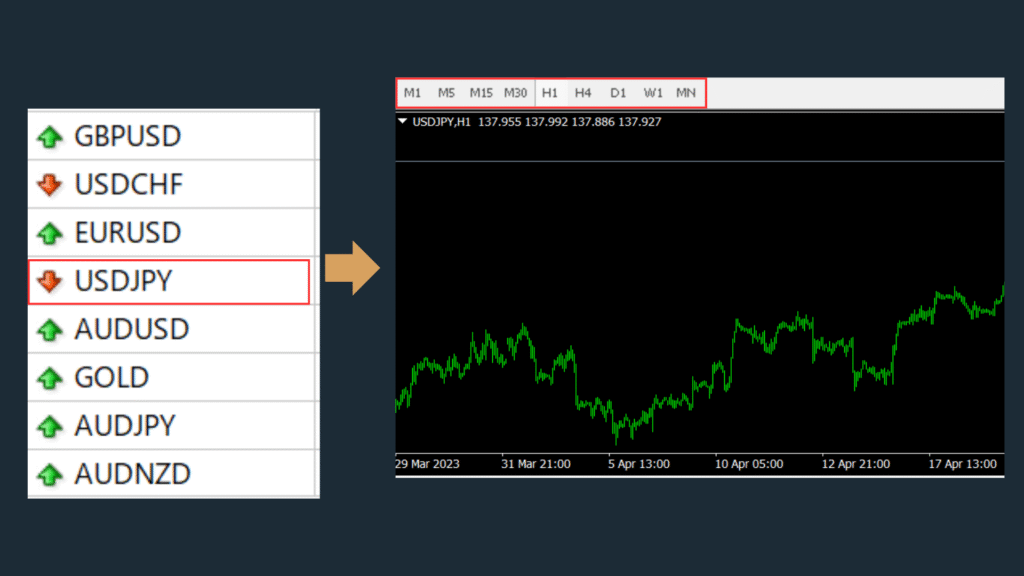
To execute automated trading, select the EA you want to use from the Navigator on the left side of MT4, then drag and drop it onto the chart you created.
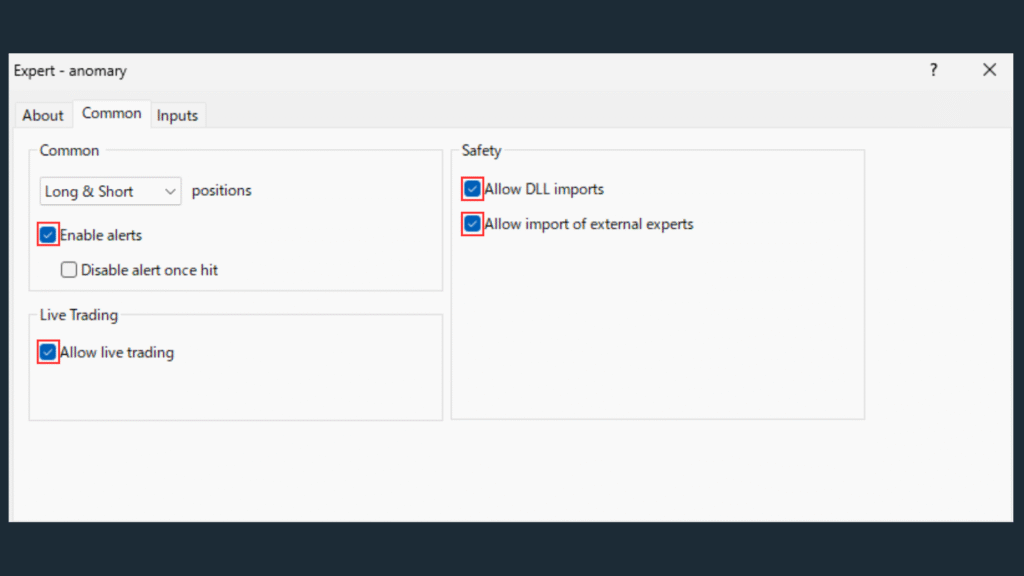
To execute automated trading, select the EA you want to use from the Navigator on the left side of MT4, then drag and drop it onto the chart you created.
- Select the”Common” tab in the displayed screen
- Check”Allow automated trading”
- Check”Allow DLL imports”
- Check”Allow external experts imports”
- Finally, click the”OK” button to save the settings.
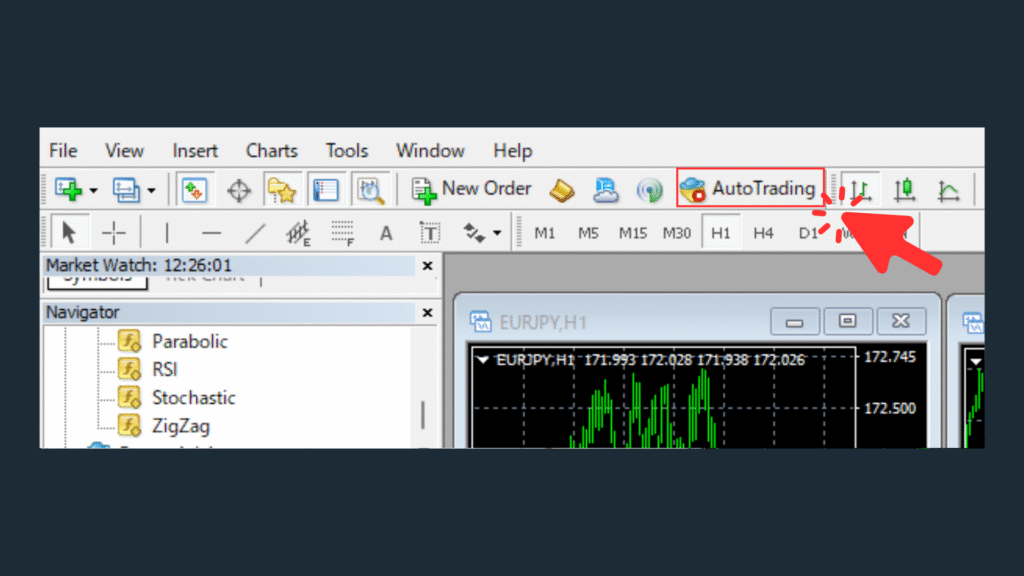
If the “AutoTrading” button at the top of the MT4 screen shows a green triangle, automated trading is enabled. If it shows a red square, automated trading is disabled.
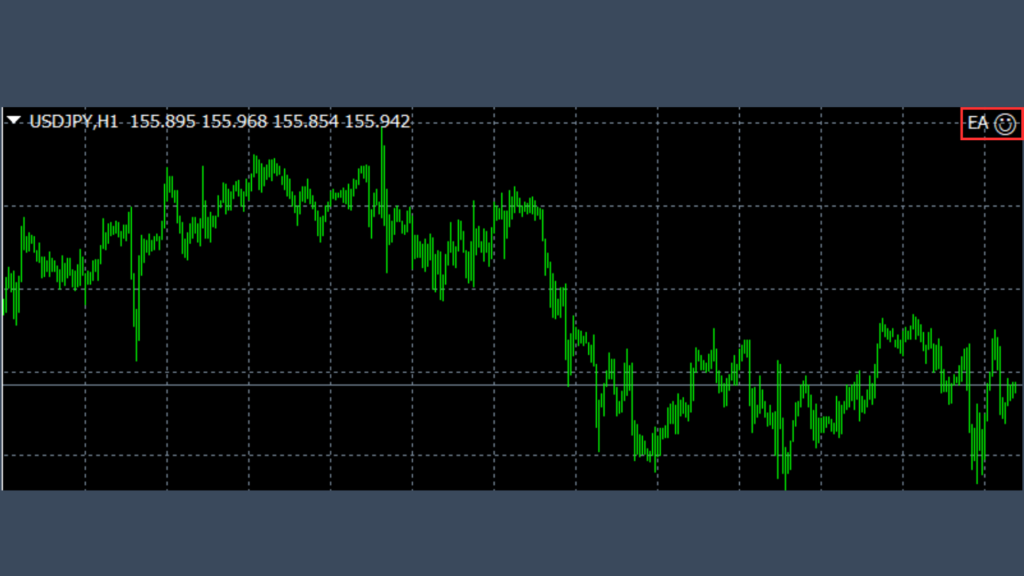
Confirm that the automated trading button shows a green triangle, and if a smiley face appears in the top right of the chart screen, this indicates that automated trading is running. To stop automated trading, click the”AutoTrading” button to change it to a red mark.
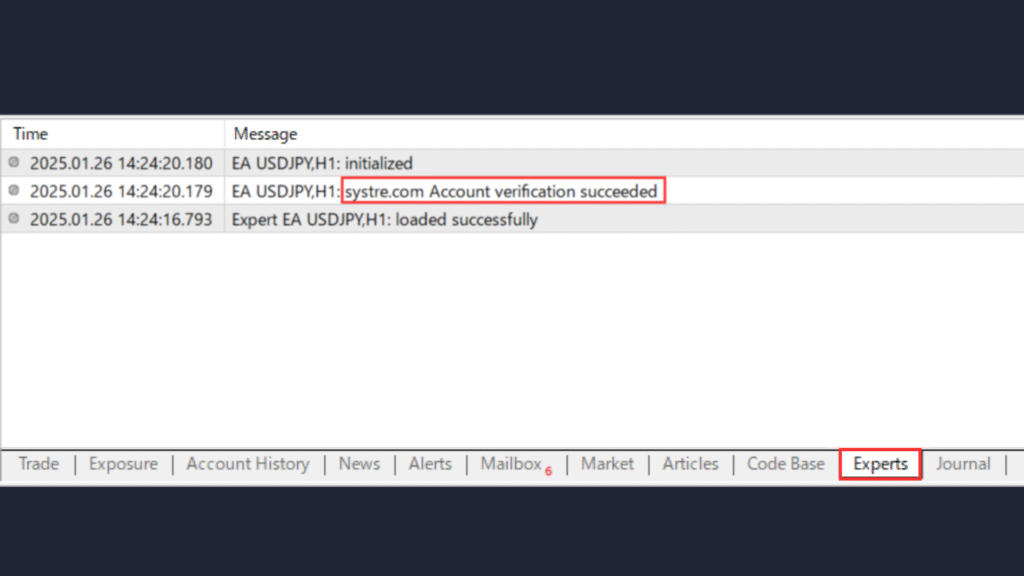
If “systre.com Account verification succeeded” is displayed, web authentication has been completed successfully.
If “systre.com Account verification succeeded” is displayed, web authentication has been completed successfully.
Pay attention to the icon in the top right of the chart.

Running

Stopped
Summary
MT4 remains the most widely used trading platform for automated EA trading. Download the broker-specific version, place your EA in the Experts folder, enable automated trading, and test it on a demo account before going live. A VPS keeps your EA running 24/5 without interruption. Monitor the Experts log regularly to catch any errors early.
Frequently Asked Questions about MT4 EA Setup
What is an Expert Advisor (EA) for MT4?
An Expert Advisor (EA) is an automated trading program that runs inside MT4. It monitors the market, opens and closes trades based on pre-programmed rules, and operates 24/5 without manual intervention. EAs are written in MQL4 and installed as .ex4 files.
How do I install an EA on MT4?
Copy the .ex4 file into the MT4 data folder under MQL4/Experts, then restart MT4 or right-click the Navigator panel and select Refresh. Drag the EA onto a chart, check “Allow automated trading” in the EA settings, and ensure the AutoTrading button at the top of MT4 is enabled (green).
What settings should I configure for an EA?
At minimum, configure the lot size (or risk percentage), stop loss, take profit, and magic number. The magic number uniquely identifies trades from this EA and is essential when running multiple EAs on the same account. Always review the EA documentation for recommended parameter values.
Do I need a VPS for EA trading?
A VPS (Virtual Private Server) is strongly recommended. It keeps MT4 running 24/5 even if your local PC is off, eliminates latency from your home internet connection, and prevents missed trades due to power outages. Most brokers offer discounted VPS services for active accounts.
How do I know if my EA is working correctly?
Check the Experts tab at the bottom of MT4 for activity logs. If the EA is running, you will see timestamped messages. Verify that trades appear in the Terminal tab when expected. Run a Strategy Tester backtest on the same settings to confirm the logic matches your live results.
What should I do if my EA is not opening any trades?
Check that: (1) AutoTrading is enabled (green button), (2) the EA is attached to the correct chart and timeframe, (3) “Allow live trading” is checked in the EA properties, (4) the account has sufficient margin. Review the Experts log for error codes — code 130 means invalid stops, code 4 means server is busy.
⚠ リスクに関する注意事項
本記事は情報提供を目的としており、特定の金融商品の売買を推奨するものではありません。FX取引はレバレッジ取引の特性上、預託した証拠金以上の損失が生じる可能性があります。取引の際は、ご自身の判断と責任において行ってください。詳しくは特定商取引法に基づく表記をご確認ください。