

To run EAs from SYSTEMTRADE.COM, configure the following 3 settings in MT5. This is a one-time setup.
- Allow WebRequest
Go to Tools → Options → Expert Advisors tab, check “Allow WebRequest for listed URL” and add the following (copy & paste):https://sys-tre.com/ - Allow algorithmic trading
Check “Allow algorithmic trading” in the same tab - Allow DLL imports
Check “Allow DLL imports (only for trusted applications)”
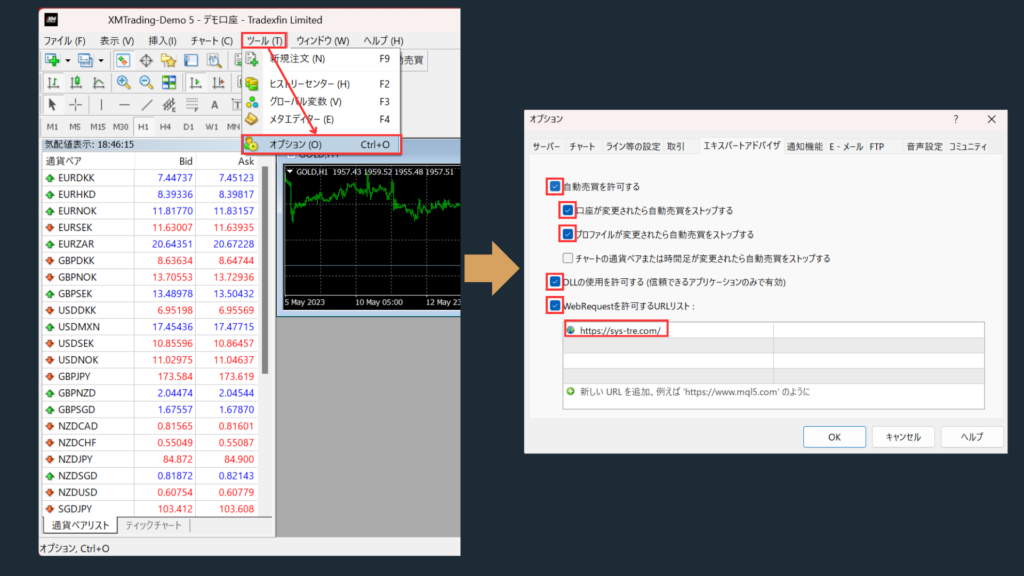
→ Click OK to save. EAs will not run without these settings.
MT5 (MetaTrader 5) Complete Setup Guide
MT5 (MetaTrader 5) is a trading platform that supports Expert Advisors (EAs) – automated trading tools provided by SYSTEMTRADE.COM. By utilizing MT5, you can automate your trading activities in forex and commodity futures markets.
What is MT5 (MetaTrader 5)?
MT5 was released as the successor to the MT4 platform. With MT5, you can trade forex, commodity futures, and stocks, with particular strength in automated trading through Expert Advisors (EAs).
The platform’s key advantages include advanced charting capabilities and comprehensive order types. MT5 provides powerful tools for both technical and fundamental analysis, making it an ideal choice for serious traders.
The platform offers 38 technical indicators and 44 drawing tools to help you develop your trading strategies. Additionally, MT5 supports fundamental analysis through its economic calendar and news feed features.
This combination allows traders to implement strategies that incorporate both technical and fundamental analysis, providing a comprehensive trading environment for all levels of traders.
New Features in MT5
MT5 introduces several enhanced features compared to MT4. These improvements significantly enhance the trading experience and provide more flexibility for automated trading strategies.
- 21 different timeframes available (from 1-minute to monthly charts) – significantly more than MT4’s standard timeframes
- Mini-chart functionality for simultaneous analysis of different currency pairs and timeframes on a single screen
- Stop-limit orders for more flexible trading strategies and risk management
- Independent chart display capability for multi-screen analysis and improved workflow
Wow, MT5 has so many more features than MT4! This looks like it could really improve my trading analysis.
Setting Up Expert Advisors (EAs) on MT5
Setting up EAs might seem complicated at first, but following these detailed steps will make the process much easier to understand!
The following step-by-step guide will walk you through the complete process of installing and configuring Expert Advisors on your MT5 platform. Each step includes detailed instructions to ensure successful setup.
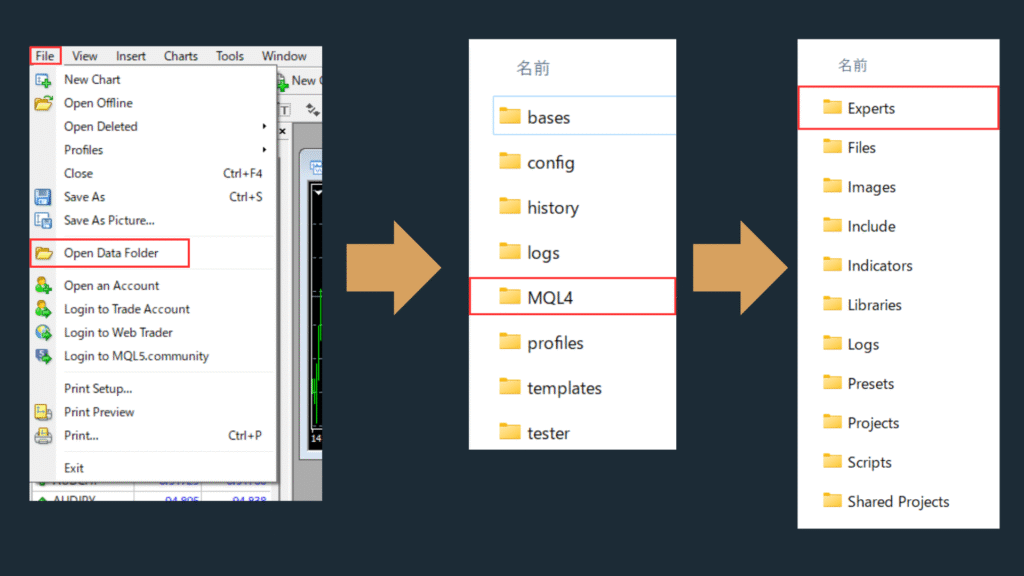
Launch MT5 and navigate to “File” →”Open Data Folder” from the top menu bar. This will open Windows Explorer showing your MT5 data directory.
In the folder that opens, navigate to MQL5 → Experts. This is the designated folder where all Expert Advisor files must be stored for MT5 to recognize them.
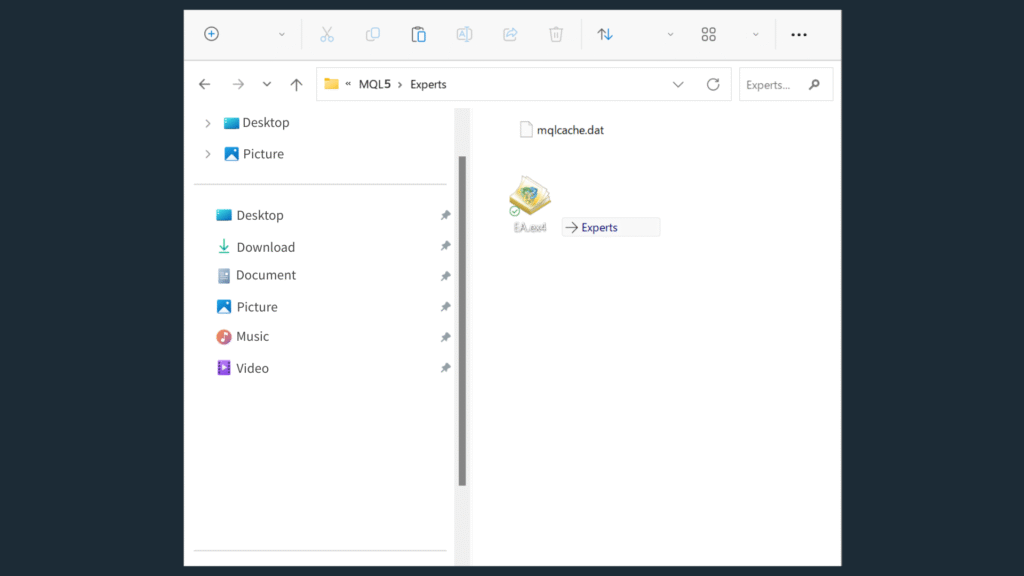
Take your downloaded EA file (usually with an .ex5 extension) and move it into the Experts folder you just opened in Step 1.
You can either drag and drop the file directly into the folder, or copy and paste it using standard Windows file operations.
MT5 Expert Advisors typically have the .ex5 file extension. Make sure you’re copying the correct file type to ensure proper functionality.
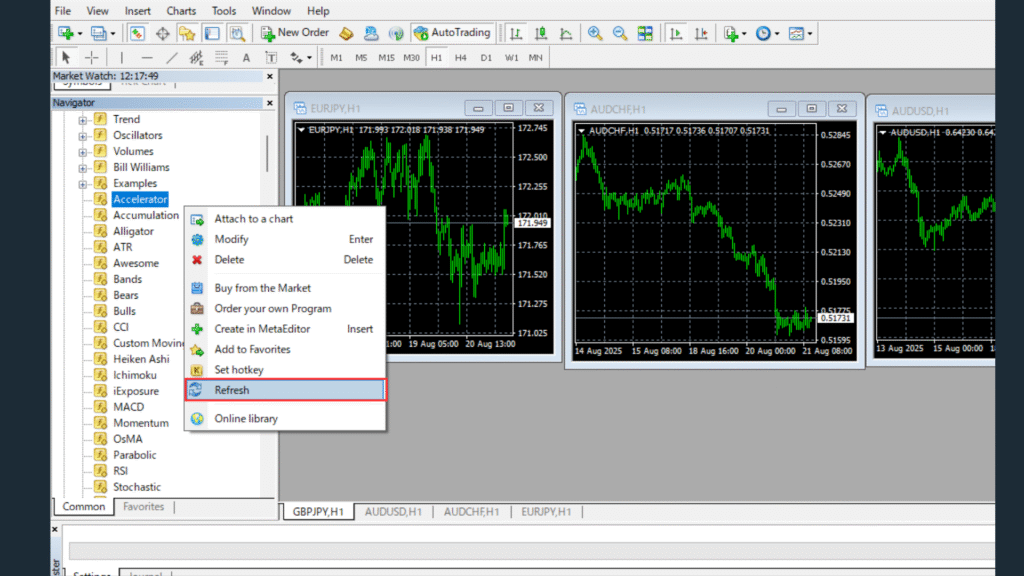
Return to your MT5 platform and check the Navigator panel on the left side of your screen. If the Navigator isn’t visible, press Ctrl+N to display it.
Under the”Expert Advisors” section in the Navigator, confirm that your recently saved EA appears in the list. The EA should be displayed by its filename.
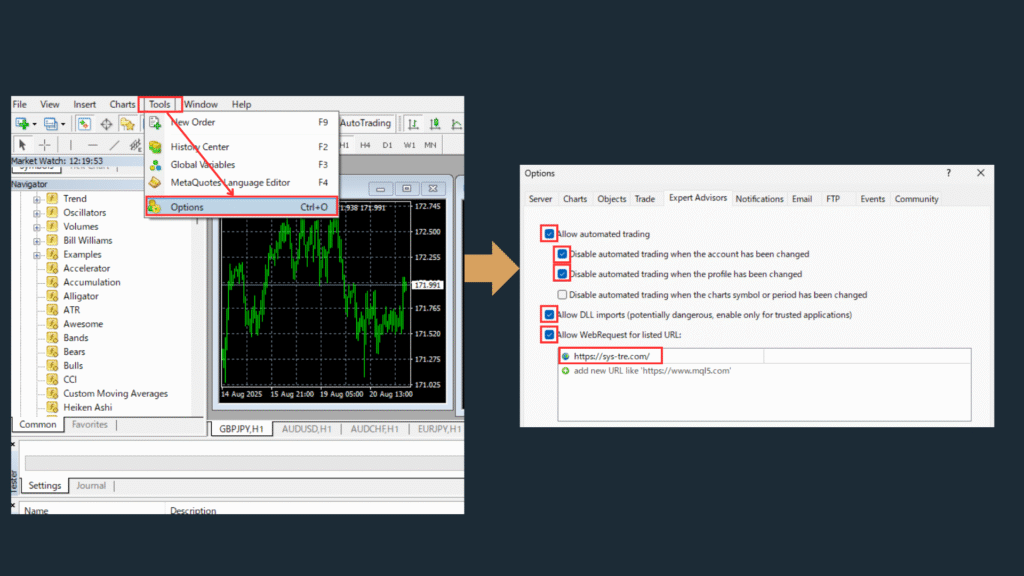
In MT5, navigate to “Tools” →”Options” →”Expert Advisors” from the top menu to access EA configuration settings.
In the Expert Advisors tab, you must enable the following essential settings:
- Check “Allow automated trading” – This is the master switch for all EA functionality
- Configure DLL usage permissions if your EA requires external libraries
- Set up the WebRequest URL list for EAs that need internet connectivity
Add https://systemtrade.com/ to your WebRequest allowed URLs list.
This step is essential for SYSTEMTRADE.COM EAs to function properly. Without this URL in the whitelist, the EA will not be able to authenticate with the service.
Copy and paste the following URL into your URL list:
• https://systemtrade.com/
Once all settings are configured correctly, click”OK” to save the changes. Automated trading functionality will now be enabled on your MT5 platform.
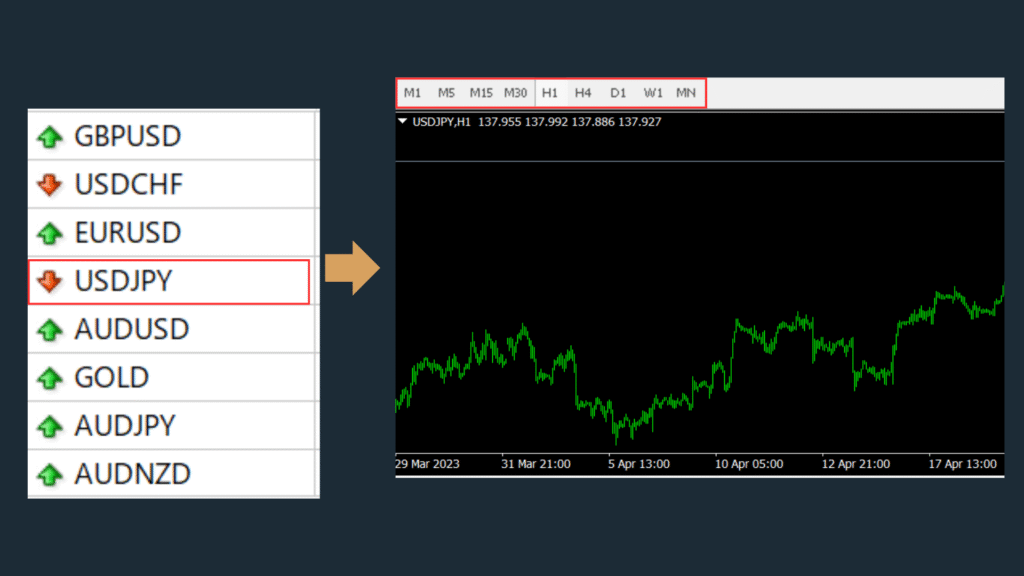
To run an EA, you must first set up a chart with the appropriate currency pair and timeframe that matches your EA’s requirements.
From the MT5 toolbar, select “File” →”New Chart” or use the shortcut Ctrl+N. Choose your desired currency pair from the symbol list.
After opening the chart, set your preferred timeframe by clicking on the timeframe buttons in the toolbar (M1 for 1-minute, M5 for 5-minute, H1 for 1-hour, etc.). The timeframe should match the requirements specified by your EA’s documentation.
Select and Insert Expert Advisor: From the Navigator window on the left side of MT5, locate the EA you want to use under the”Expert Advisors” section. Click and drag the selected EA onto your prepared chart window. This will open the EA settings dialog.
Configure EA Parameters: In the EA settings dialog that appears, you can adjust various parameters specific to your chosen EA. These might include lot sizes, risk levels, stop losses, and other trading parameters. Review these settings carefully before proceeding.
Enable Required Permissions: In the same dialog, navigate to the”Common” tab and ensure the following options are checked:
- “Allow automated trading” – Enables the EA to execute trades automatically
- “Allow DLL imports” – Required for EAs that use external libraries
- “Allow external experts imports” – Permits the EA to access external resources
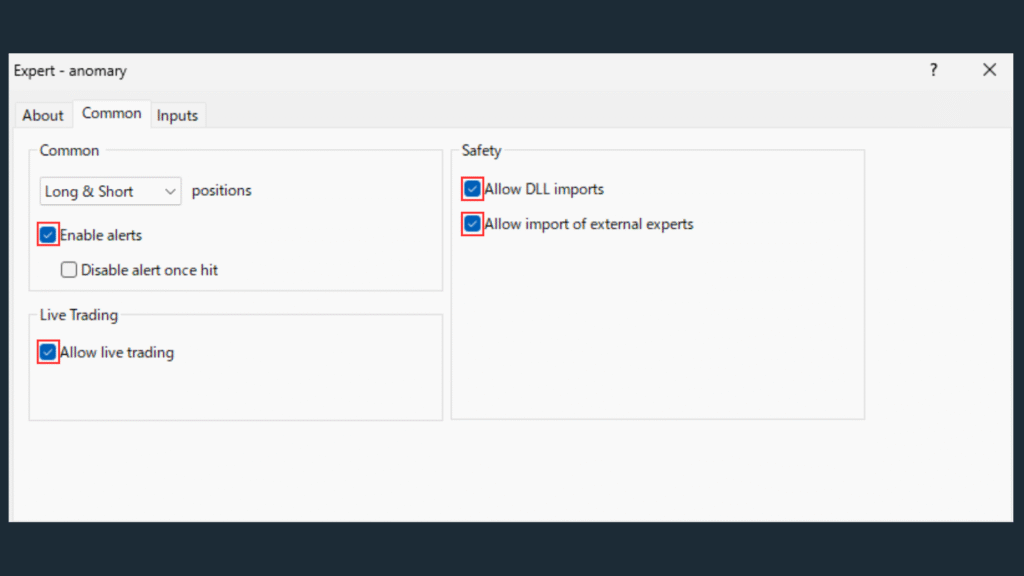
Click”OK” to apply the EA to your chart. This completes the basic setup for automated trading in MT5. With the EA properly configured and these options enabled, automated trading should begin functioning correctly.
Monitoring Automated Trading Status
MetaTrader 5 features an “AutoTrading” button in the top toolbar, similar to MT4. This button serves as an important visual indicator for the current status of automated trading on your platform.
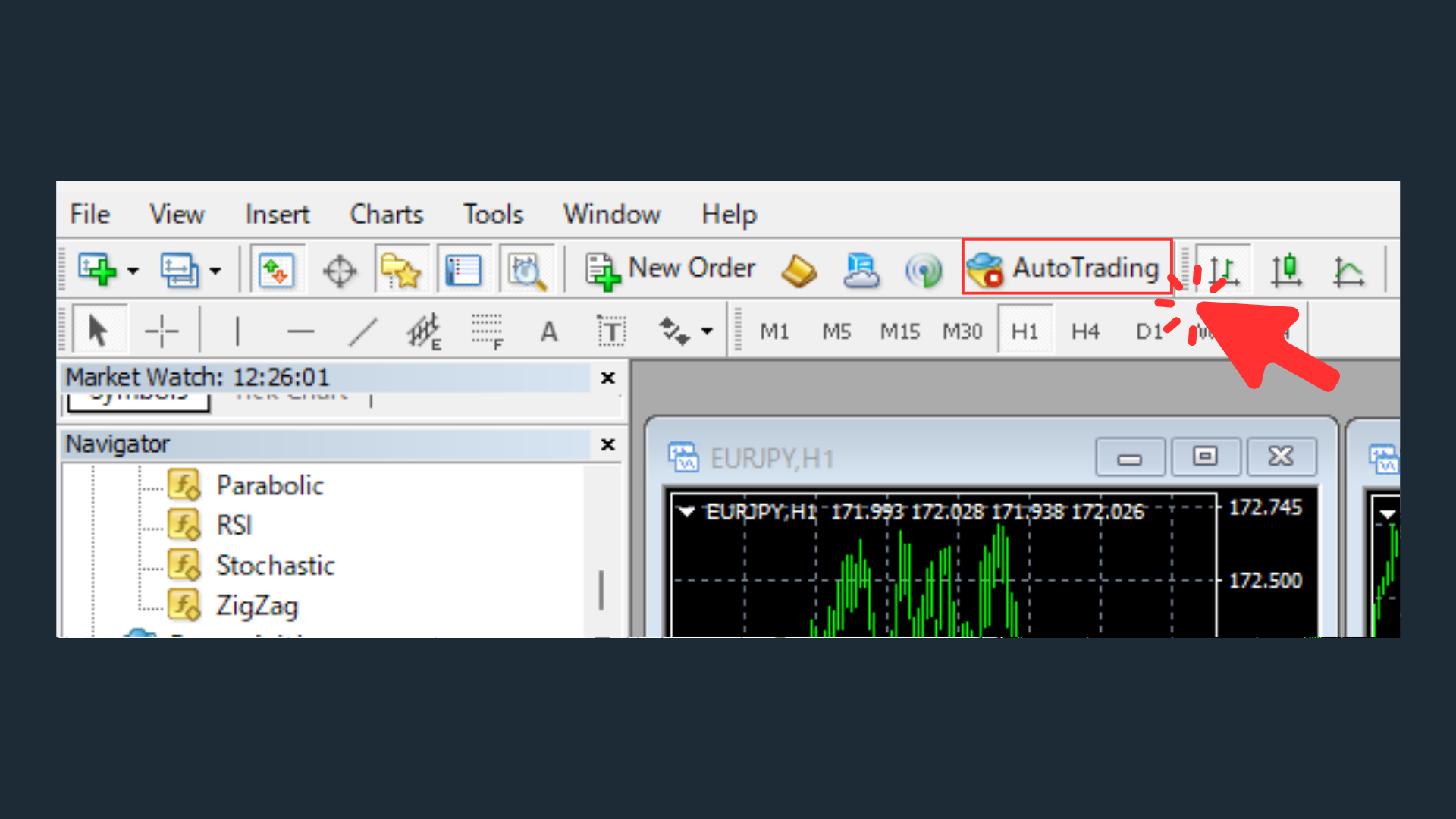
Understanding these status indicators is crucial for successful automated trading management. Let’s examine each indicator in detail:
- When the”AutoTrading” button shows a green triangle (play button), automated trading is enabled across the entire platform
- When it shows a red square (stop button), automated trading is disabled for all EAs
- This button affects all automated trading activities on your MT5 platform simultaneously
- A smiley face icon in the top-right corner of each individual chart indicates that the EA on that specific chart is actively running
- The presence of this smiley face confirms that your automated trading system is functioning properly on that particular chart
- Each chart with an active EA will display its own smiley face icon
- If the smiley face is missing, the EA on that chart is not active, even if global AutoTrading is enabled
Pay attention to the icon in the top right of the chart.

Running

Stopped
To stop automated trading completely, click the”AutoTrading” button in the toolbar to change it from the green triangle to the red square icon. This will immediately disable all automated trading activities across all charts and EAs on your platform.
To stop an individual EA while keeping others running, right-click on the specific chart and select”Expert Advisors” →”Remove” from the context menu.
Additional Configuration Tips
Beyond the basic setup, there are several additional configuration options that can enhance your MT5 automated trading experience:
Global AutoTrading Button: Remember that the AutoTrading button in the toolbar acts as a master switch. Even if individual EAs are properly configured, they won’t execute trades if this global switch is disabled.
Chart Independence: Each chart operates independently. You can run different EAs on different charts simultaneously, each with their own settings and currency pairs.
Performance Monitoring: Regularly check the”Trade” tab in the Toolbox to monitor your EA’s trading activity, including open positions, trade history, and account balance changes.
For optimal performance, ensure your MT5 platform remains connected to the internet and your computer doesn’t enter sleep mode during trading hours. Consider using a VPS (Virtual Private Server) for 24/7 automated trading if you plan to run EAs continuously.
Congratulations! You have successfully completed the comprehensive setup of MT5 for automated trading with Expert Advisors. This detailed guide has walked you through every essential step, from initial installation to operational verification.
Your MT5 platform is now properly configured to work with SYSTEMTRADE.COM Expert Advisors, and you should be seeing confirmation messages indicating successful authentication and operation.
Perfect! Now I have everything set up correctly for automated trading with MT5. Time to start monitoring my EA’s performance and watch it work!
Remember to always monitor your automated trading activities and never risk more than you can afford to lose. Automated trading is a powerful tool, but it requires proper oversight and risk management to be successful.
Summary
MT5 offers multi-asset trading, a built-in strategy tester with optimization, and native hedging support. The EA installation process is similar to MT4 but uses a different folder structure (MQL5/Experts). Always run a strategy tester backtest before live trading, and monitor the Experts log for error messages. MT4 EAs do not run natively on MT5 and must be rewritten in MQL5.
Frequently Asked Questions about MT5 EA Setup
What is an Expert Advisor (EA) for MT5?
An Expert Advisor (EA) is an automated trading program that runs inside MT5. It executes trades automatically based on programmed logic, supports multi-asset trading across FX, stocks, and commodities, and can run 24/5 without manual intervention. MT5 EAs are written in MQL5.
How do I install an EA on MT5?
Copy the .ex5 file into the MT5 data folder under MQL5/Experts, then refresh the Navigator panel (right-click → Refresh). Drag the EA onto a chart, enable “Allow Automated Trading” in the EA settings, and confirm the AutoTrading button at the top of MT5 is green.
What are the system requirements for running EAs on MT5?
MT5 runs on Windows 7 or later (64-bit recommended), macOS via Wine, or a VPS. For continuous 24/5 operation, a VPS with at least 1GB RAM and a stable internet connection is recommended. Resource-intensive EAs with real-time tick data processing may require 2GB+ RAM.
How do I configure EA settings on MT5?
Double-click the EA in the Navigator to open its properties. Set lot size, stop loss, take profit, and magic number in the Inputs tab. The magic number must be unique per EA per account to avoid trade conflicts. Use the Tester to optimize parameters before deploying live.
What is the difference between MT4 and MT5 for EA trading?
MT5 supports multi-asset trading, has a built-in strategy tester with optimization and forward testing, and offers more order types. MT4 has a larger community and more existing EAs. MT5 uses MQL5 which is not backward-compatible with MQL4, so MT4 EAs cannot run directly on MT5.
Can I run MT4 EAs on MT5?
Not directly. MT4 EAs (.ex4 files) are not compatible with MT5. MT5 requires EAs written in MQL5 (.ex5 files). However, many popular MT4 EAs have been rewritten for MT5, and MetaQuotes provides a compatibility layer for some basic MQL4 functions. For full compatibility, the EA must be recoded in MQL5.
⚠ リスクに関する注意事項
本記事は情報提供を目的としており、特定の金融商品の売買を推奨するものではありません。FX取引はレバレッジ取引の特性上、預託した証拠金以上の損失が生じる可能性があります。取引の際は、ご自身の判断と責任において行ってください。詳しくは特定商取引法に基づく表記をご確認ください。